Blog
Free digital planner templates: download and start planning today
Digital planners give you the feel of handwriting without the limitations of paper. Download free templates and start planning on your tablet today.

If you've been searching for a digital planner free download, you're in the right place. Below you'll find free templates for daily planning, weekly overviews, budgeting, fitness tracking, meal planning, and goal setting. Each template is designed to work with popular apps like Goodnotes and Notability, and they're yours to download and use immediately.
Whether you're new to digital planning or looking for fresh layouts, this guide covers everything: how digital planners work, which apps to use, how to customize templates to fit your life, and (if you're the creative type) how to make and sell your own planner PDFs.
What are digital planners and why do people love them
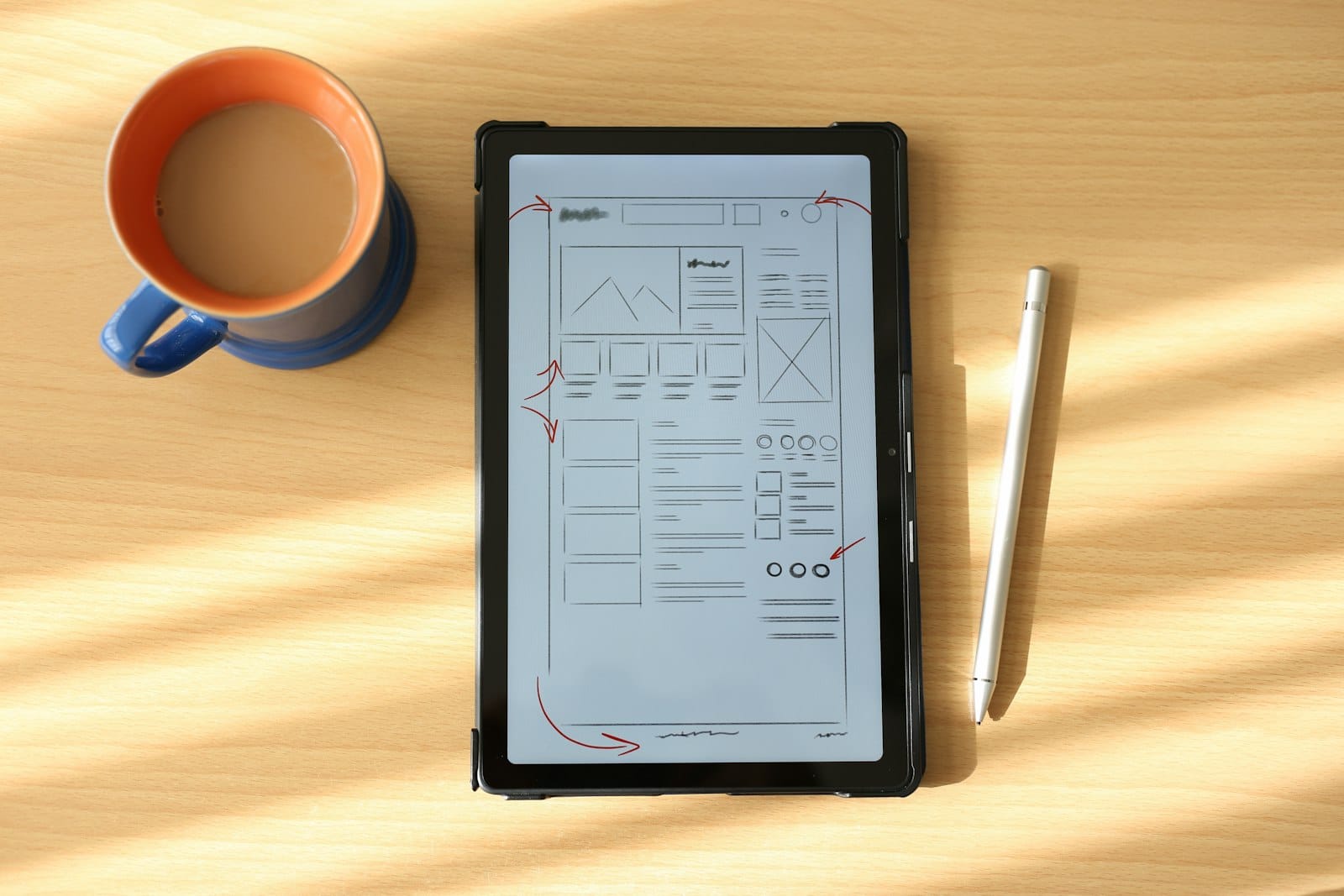
A digital planner is a PDF or file designed to be used on a tablet with a stylus. You write on it just like a paper planner, but with the advantages of digital tools: copy and paste, infinite colors, undo buttons, searchable text, and the ability to add photos, stickers, and links.
Most digital planners use hyperlinked PDFs, meaning you tap on a tab or date to jump directly to that page. A well-designed digital planner feels like flipping through a real book, but faster.
Why they've gotten so popular
The rise of tablets with stylus support, including the iPad with Apple Pencil, Samsung Galaxy Tab with S Pen, and Remarkable tablets, created the hardware foundation. Then apps like GoodNotes, Notability, and Noteshelf made it seamless to import and annotate PDFs.
The result is a planning experience that combines the psychological benefits of handwriting (better retention, more intentional planning) with the practical benefits of digital (backup, portability, infinite pages, no waste). A 2024 survey by GoodNotes found that 78% of their users import third-party planners and templates, showing just how central downloadable planners have become to the ecosystem.
Types of digital planners
Different goals call for different layouts. Here are the most popular types and what makes each one useful.
Daily planners
Daily planners give you a full page (or spread) for each day. They typically include:
- Time-blocked schedule (hourly or by morning/afternoon/evening)
- Priority tasks section (top 3 things that must get done)
- Notes area for free-form writing
- Gratitude or reflection prompt
Daily planners work best for people with variable schedules who need detailed planning for each day. If your weeks follow a predictable routine, a weekly planner might be more practical.
Weekly planners
Weekly planners show all seven days on a single spread. They're the most popular format because they balance detail with big-picture visibility. You can see your entire week at a glance while still having enough space to note key tasks and appointments for each day.
The best weekly layouts include a sidebar for weekly goals, a habit tracker, and a notes section for overflow thoughts.
Budget and finance planners
Budget planners help you track income, expenses, savings goals, and debt payoff. Digital versions have a particular advantage here: you can duplicate monthly tracking pages indefinitely without running out of paper, and some templates include simple calculation fields.
Common sections include:
- Monthly income and expense tracking
- Bill payment schedule
- Savings goal trackers with visual progress bars
- Debt snowball or avalanche worksheets
- Annual financial overview
Fitness planners
Fitness planners track workouts, meals, body measurements, water intake, and progress photos. The digital format is especially useful for fitness tracking because you can easily look back at previous months to see trends.
A good fitness planner template includes workout log pages (with space for exercises, sets, reps, and weight), weekly meal planning spreads, and monthly measurement tracking.
Meal planners
Dedicated meal planners focus specifically on planning what you eat. They typically include weekly meal grids (breakfast, lunch, dinner, snacks for each day), grocery list pages linked to each week, and a recipe collection section where you can paste or write favorite recipes.
Meal planners are one of the most practical digital planner types because they directly reduce decision fatigue and food waste. Planning meals for the week in 20 minutes on Sunday saves hours of "what should we eat" conversations throughout the week.
Goal-setting planners
Goal-setting planners use frameworks like SMART goals, quarterly planning, or the 12-week year method to help you define objectives, break them into milestones, and track progress. They usually include:
- Annual vision or goal-setting pages
- Quarterly breakdown sections
- Monthly milestone trackers
- Weekly action item pages
- Reflection and review prompts
These planners work well alongside a daily or weekly planner, serving as the strategic layer on top of your day-to-day planning.
How to use digital planners on your tablet
If you've never used a digital planner before, the setup is straightforward. Here's how to get started on the most popular apps.
GoodNotes (iPad and Mac)
GoodNotes is the most popular app for digital planning. To use a planner template:
- Download the planner PDF to your iPad (it will usually save to the Files app).
- Open GoodNotes and tap the "+" icon to create a new document.
- Select "Import" and choose the PDF from your Files app.
- The planner opens as a notebook. Use your Apple Pencil to write, and tap hyperlinked tabs to navigate between sections.
GoodNotes lets you add custom stickers, change pen colors and styles, and insert images, all of which are useful for personalizing your planner.
Notability (iPad, Mac, and iPhone)
Notability works similarly to GoodNotes but includes audio recording (useful for meeting notes alongside your planner). To import:
- Download the planner PDF.
- Open Notability and tap "New Note."
- Tap the share/import icon and select your PDF.
- Navigate using the hyperlinked tabs and write with your stylus.
Notability's handwriting search feature is a standout. It can search your handwritten notes across all your planners, making it easy to find specific entries.
Samsung Notes (Galaxy Tab)
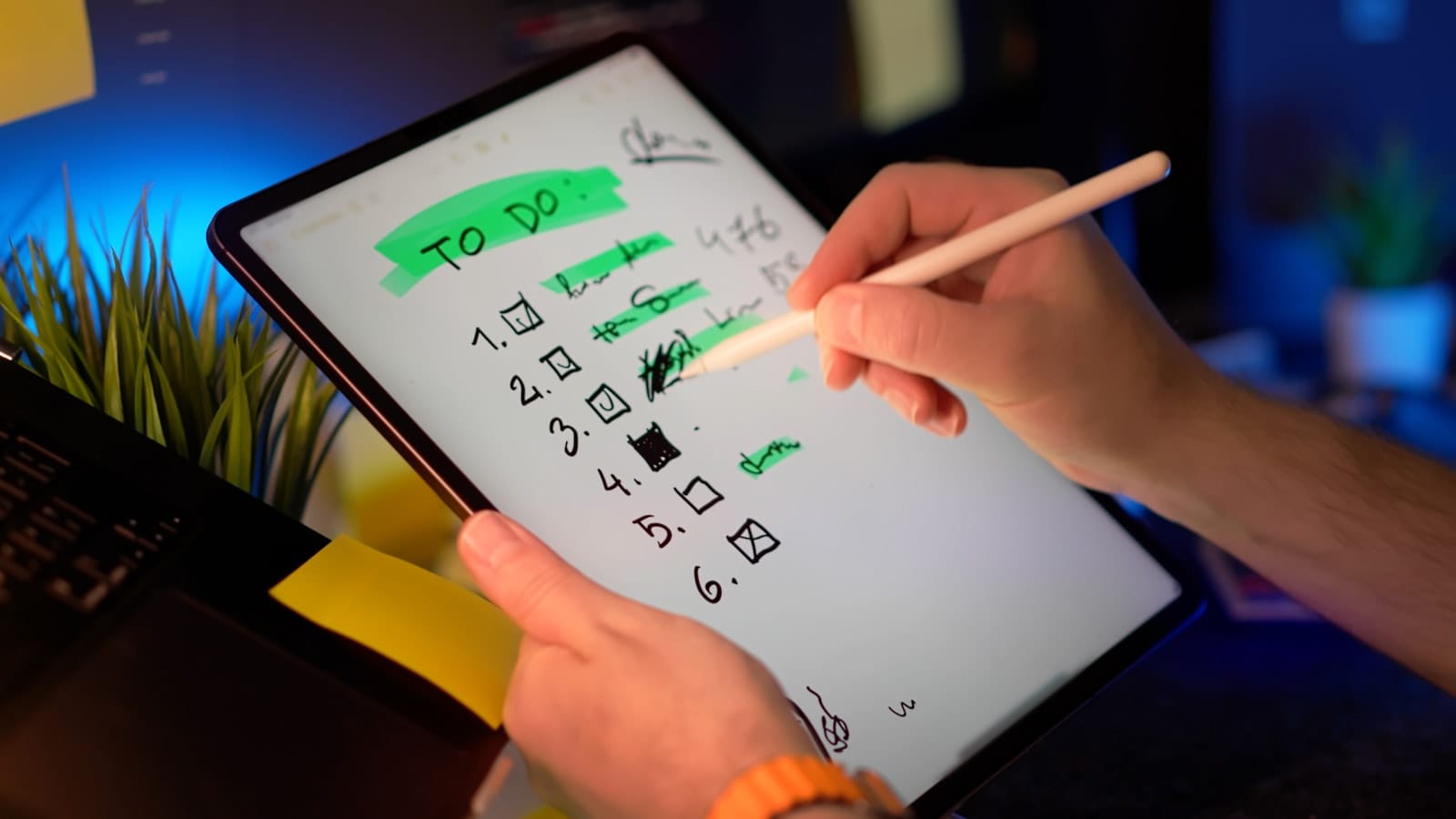
Samsung Notes comes pre-installed on Galaxy tablets and supports PDF import. The process is simple: open Samsung Notes, import your PDF, and use the S Pen to write. The app supports pressure sensitivity and palm rejection, making the writing experience smooth.
Tips for any app
- Turn off auto-rotation while planning so the page doesn't flip when you shift your hand.
- Use a matte screen protector for a paper-like writing feel. Brands like Paperlike and Doodroo are popular options.
- Back up your planners to cloud storage regularly. A corrupted file or lost tablet shouldn't mean losing months of planning.
- Start with a weekly planner if you're new to digital planning. It's the easiest format to maintain consistently.
How to customize your digital planner templates
Free templates are a great starting point, but customization is where digital planning really shines. Here are practical ways to make any template your own.
Add digital stickers
Digital stickers are PNG images with transparent backgrounds that you paste onto your planner pages. They range from functional (flags, arrows, checkboxes) to decorative (floral elements, motivational quotes, seasonal themes).
You can find free digital sticker sets on Etsy, Pinterest, and creator websites. In GoodNotes, add them using the image tool or create a custom sticker book for easy access.
Create custom covers
Most planner templates come with a generic cover. Swap it out by designing your own in Canva or by finding a cover template that matches your aesthetic. A personalized cover makes your planner feel like yours, which increases the chance you'll actually use it.
Build a sticker book
GoodNotes allows you to create "Elements" collections, which are essentially sticker books where you organize your favorite stickers by category. Set up categories like "headers," "functional," "decorative," and "icons" so you can quickly drag and drop while planning.
Color-code your life
Digital planners let you use unlimited colors without buying new pens. Establish a color-coding system:
- Blue for work tasks and meetings
- Green for personal and self-care
- Red for urgent or deadline items
- Purple for creative projects
- Orange for financial tasks
Consistency with colors makes your planner scannable at a glance. You'll be able to open a weekly spread and immediately see the balance (or imbalance) between different areas of your life.
Link pages together
If your planner template doesn't include hyperlinks between sections, you can add them yourself in GoodNotes. Create links from your weekly spread to detailed daily pages, from your meal planner to your grocery list, or from your goal tracker to related action items.
Choosing the right planner for your needs
With so many options available, here's a simple framework for picking the right digital planner.
If you're a student
Look for a planner with academic calendar formatting (August-to-July), class schedule templates, assignment trackers, and exam study planning pages. A weekly layout with time blocks works well for managing classes, study sessions, and social commitments.
If you're a freelancer or entrepreneur
You need a planner that combines project tracking with personal scheduling. Look for templates that include client project pages, income tracking, invoice schedules, and content planning sections alongside your daily and weekly planning.
If you're focused on health
Combine a fitness planner with a meal planner. The most useful health-focused templates track not just workouts and food, but also sleep, water intake, mood, and energy levels. Tracking these together reveals patterns you'd never spot in isolation.
If you're managing a household
Family and household planners include shared calendars, chore assignments, meal planning, budget tracking, and school/activity schedules. Look for templates with multiple "views," such as a family overview plus individual planning pages for each household member.
From user to creator: selling your own digital planners
If you've been using digital planners and find yourself thinking "I could design a better layout than this," you might be sitting on a business opportunity. Digital planners are one of the top-selling digital product categories, and creators with strong design skills and an understanding of what planners actually need can build meaningful income.
The market is real
Digital planners consistently rank among the top digital download categories on Etsy. Top planner sellers generate $5,000-$20,000 per month. The barrier to entry is relatively low if you have basic design skills, since tools like Canva, Keynote, and Affinity Publisher can all produce professional planner PDFs.
What you need to get started
To create and sell digital planners, you need:
- A design tool: Canva (free tier works), Keynote (free on Mac), or Affinity Publisher ($70 one-time) are the most popular choices for planner creation.
- Hyperlink knowledge: Learning to add clickable navigation tabs is what separates a basic PDF from a functional digital planner.
- A sales platform: You need somewhere to list your product, process payments, and deliver the file automatically. A platform built for digital product delivery and checkout handles the delivery side cleanly: buyers purchase and immediately receive their download, and you can set up your product in minutes without building a full e-commerce site.
- Marketing channels: Pinterest and Instagram are the primary discovery platforms for digital planners.
Pricing digital planners
Free planners (like the templates in this article) generate traffic and build audiences. Paid planners typically sell for:
- Basic planners (single-purpose, minimal customization): $3-$8
- Comprehensive planners (multi-section, hyperlinked, 50+ pages): $10-$25
- Premium planners (heavily designed, includes stickers, multiple cover options): $20-$45
- Planner bundles (multiple planners packaged together): $30-$75
The sweet spot for most sellers is the $10-$25 range for a well-designed, hyperlinked planner with clean aesthetics and genuinely useful layouts. If you plan to sell directly rather than relying entirely on marketplaces, compare pricing for digital sellers before you choose your setup.
Standing out in a crowded market
The digital planner market is competitive, but niches remain underserved. Instead of creating another generic weekly planner, consider planners for specific audiences:
- ADHD-friendly planners with simplified layouts and dopamine-boosting design
- Planners for specific professions (real estate agents, teachers, content creators)
- Planners built around specific methodologies (time blocking, Eisenhower matrix, deep work)
- Planners for specific life events (wedding planning, new baby, home renovation)
Specificity sells. "The Ultimate Digital Planner for Content Creators" appeals to a smaller audience than "Weekly Planner," but the conversion rate will be dramatically higher because it speaks directly to a need.
Getting the most from your digital planner
A planner only works if you use it. Here are habits that help digital planners stick.
Plan at the same time every day
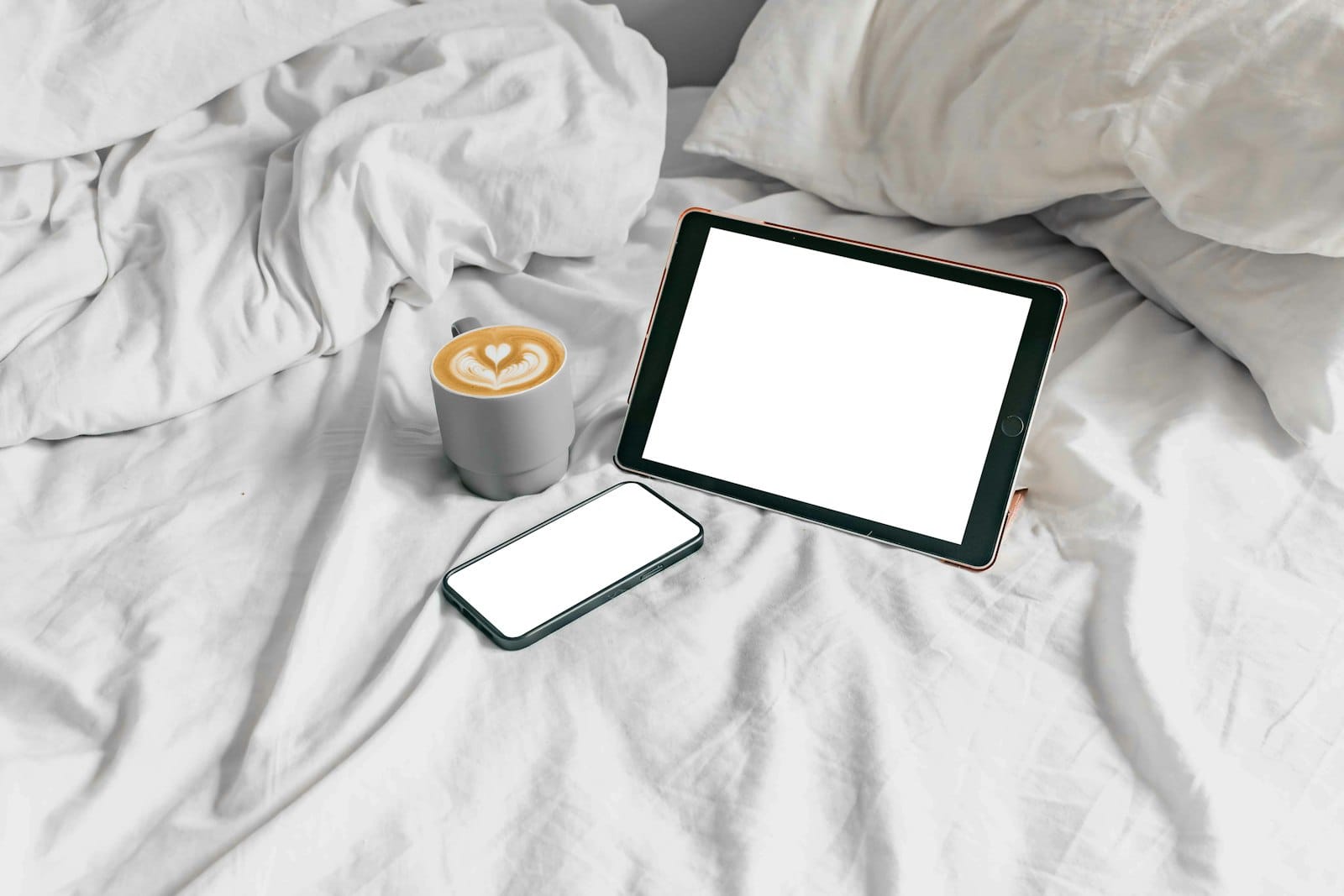
Pick a consistent time, such as morning coffee, lunch break, or before bed, and spend 5-10 minutes with your planner. Consistency matters more than duration. A quick daily check-in beats an hour-long weekly session you keep skipping.
Do weekly reviews
Every Sunday (or whatever day works for you), spend 15-20 minutes reviewing the past week and planning the next. Look at what you accomplished, what carried over, and what needs to change. This weekly rhythm is what transforms a planner from a to-do list into a genuine productivity system.
Don't aim for perfection
Your planner is a tool, not a performance. Messy handwriting, crossed-out tasks, and blank days are all normal. The goal is to capture your plans and track your progress, not to create Instagram-worthy spreads (unless that's genuinely part of the fun for you).
Revisit and adjust
If a planner layout isn't working for you after two weeks, change it. Try a different template, adjust your categories, or simplify your tracking. The best planner is the one you actually use, and that might take some experimentation to find.
SendOwl makes selling digital planners simple. Upload your files, set your prices, and share links anywhere you connect with your audience. Get started selling digital products for free today.

Dani is the GM of SendOwl.
community
Join our newsletter for the latest tips, updates,
and exclusive offers to supercharge your digital product sales.